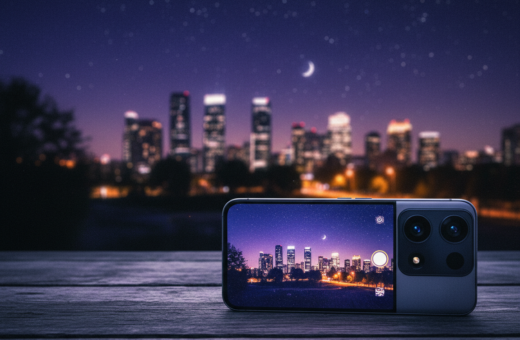
Capture level, professional-looking shots by learning a few simple steps. Mobile software has advanced as of the 2024/12/1 update, so you can fix skewed lines and keep the original mood of a scene right on your device.
If you use an iPhone camera, small settings changes at the time of capture make a big difference. This guide shows a clear way to set up your camera and how to use built-in tools to edit photos with precision.
Follow each step and apply a few quick tips and tricks to get pictures that look sharp and level. You will learn how to align horizontal lines, reduce distortion, and prepare shots that need minimal post work.
Why Horizon Alignment Matters for Urban Photography
A level visual line gives urban images an immediate sense of order and professionalism. In architectural work, viewers expect straight lines, so a tilted frame can distract from the design.
Professional photographers like Jim Hamel, Darren Rowse, and Jaymes Dempsey note that the eye seeks order. When a camera is off by a few degrees, even strong lighting or an interesting subject loses impact.
Using the right lens helps reduce distortion, but you still need to keep your device level. Mastering basic settings takes time, yet it is one of the most important things you can do for better photos.
- Check the horizon line to make images feel stable and professional.
- Train yourself to align the camera while taking pictures to avoid fixes later.
- Adjust settings and lens choice in the field to prevent skewed perspectives.
“Every picture tells a story, and a crooked horizon can distract the viewer from the architectural beauty.”
Paying attention to level composition is an easy way to elevate your work and keep viewers focused on the design, not the tilt.
Techniques to Straighten Horizon Night City Photos Smartphone Editing
Use simple alignment aids to get level results fast. Modern mobile photo editing and built‑in tools mean you can capture and correct tilt with minimal work.
The Role of Gridlines
Most modern camera apps offer a 3×3 grid overlay. This divides the frame into nine segments so you can align horizontal lines with ease.
- Turn on the gridline feature in your settings before you shoot.
- When a photo leans to one side, line up the horizon line with a grid row.
- Editing apps often include a grid for precise on-screen adjustments later.
Using Electronic Levels
The electronic level tells you when the device is truly flat. Many pros use this to save time and cut post‑capture work.
“A quick level check reduces fixups and keeps your pictures consistent.”
Pro tip: enable the electronic level and grid together in your settings to make sure every shot is balanced. These simple tricks let you reliably straighten horizon night city photos smartphone editing and produce a professional result every time.
Capturing Level Shots in the Field
Using a solid support lets you dial in settings and capture cleaner shots in low light. A tripod frees you to adjust exposure, test lenses, and pay close attention to composition without the shake of a handheld camera.
Benefits of Using a Tripod
A sturdy tripod is the best way to ensure your camera remains level. It helps when you are taking pictures in low-light situations and when long exposures are needed.
- With a tripod you can make sure the horizon stays straight and focus on framing the picture.
- Use a shutter speed between 1/20 and 1/30 to get creative motion blur while keeping the main image stable.
- Tripods let you try different settings and lenses without losing your composition.
- One reliable support saves time and is a top tip from every professional photographer for sharper images and better shots.
“Set your tripod, review settings, then take your time — the results speak for themselves.”
Utilizing Built-In Smartphone Editing Tools
Mobile software now offers precise controls that make leveling a simple task. Use native features first to save time and preserve image quality. These controls are a fast way to polish a shot on your device.
Accessing the Crop Panel
Open the crop panel on your iPhone camera or in an app like Lightroom Mobile to find the main tool for alignment. The Lightroom “Straighten Tool” sits here and fixes tilt with a single gesture.
Manual Rotation Sliders
When the auto option leans too much to one side, use manual rotation sliders to nudge the frame. Small adjustments keep the rest of the picture intact and avoid heavy cropping.
Applying Auto-Straighten Features
The auto-straighten button often corrects a crooked horizon line in one tap. After that step, open the transform panel in pro software to fix perspective on tall buildings.
- Tip: many editing apps include these features, so you can edit photos without a desktop.
- Tip: always review the result to make sure the final picture looks natural.
“Use the crop panel first, then tweak with sliders for a clean, level result.”
Correcting Perspective and Converging Verticals
Perspective distortion often shows up as walls angling inward, especially with wide lenses. This makes tall buildings or a beige brick facade look like they are falling in toward the center of the picture.
The Lightroom Transform Panel with Guided Geometry is the go-to feature for fixing this. Draw guide lines along vertical edges—like the sides of a yellow brick wall with two windows—to force those lines parallel. Don’t rely on a single guide line; add two or four for an even result.
Start with the auto button in the transform panel as a quick fix. Then use manual controls to refine the result so the image looks natural. Wide-angle lenses increase distortion, so expect to use these tools more often with those lenses.
- Tip: draw multiple guides for balanced results.
- Tip: try auto first, then nudge manual sliders.
- Tip: adjust camera settings and lens choice to reduce fixes later.
“Learning to use guided geometry is one of the best ways to make urban images look structurally sound.”
Advanced Adjustments for Nighttime Clarity
Balancing motion and exposure with the right shutter speed transforms dim scenes into crisp images. Start by testing slower shutter speeds with a tripod to gather light while avoiding blur.
Use your camera’s manual controls to set exposure, ISO, and shutter speed in a way that reduces noise but keeps detail. Try a lower ISO and longer exposure, then review for movement in traffic or people.
In post, modern software and tools let you tackle noise and color casts that appear in low-light photos. Open the transform panel to keep architectural lines and city lights aligned while you adjust tone.
Combine a quality lens with careful software tweaks to bring out texture and contrast. These tricks help turn dull captures into vivid, professional-looking shots.
- Control shutter speed to balance exposure and sharpness.
- Use noise reduction and color correction in advanced tools.
- Apply the transform panel to preserve structural lines and the horizon.
“Mastering these adjustments takes time, but the results elevate your portfolio.”
Conclusion
Ultimately, attention to simple details before and after a shoot produces cleaner, more professional results. Keep a routine: steady support, correct shutter speed, and mindful framing help every camera session.
Practice the single most important step: review your frame and fix small tilt issues with quick on-device controls. These tips make it easy to get photos that look intentional and polished.
Consistent photo editing and good capture habits set the work of hobbyists apart from professionals. Follow this guide and you will see how a few changes help each picture stand out.
Start today, apply one step at a time, and watch your urban work grow into a stronger portfolio for any photographer or group of photographers learning the craft.